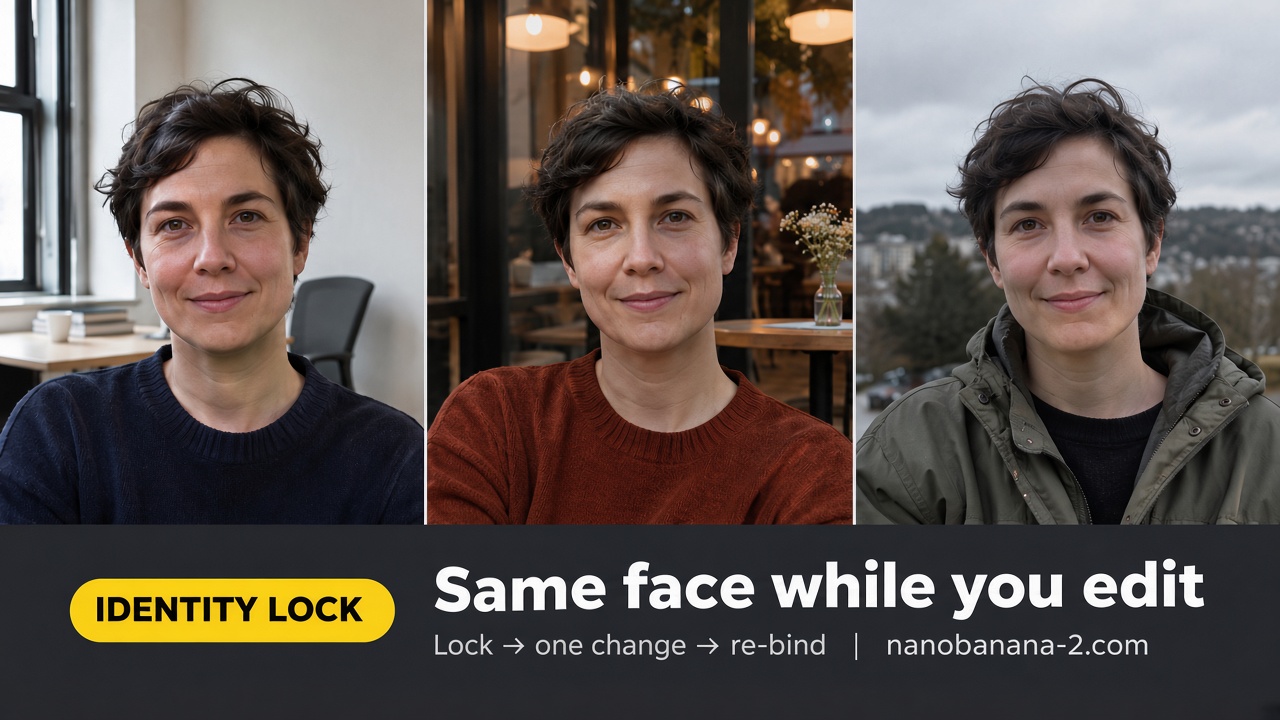
Can Nano Banana make videos directly? Not from text alone—and that's actually why creators get cleaner AI videos with it.
When you search for a Nano Banana video generator, what you really want is simple: you already generated a sharp image (or have a favorite photo on your phone) and want to make it move without the subject melting two seconds later. Locking the visual details as a still frame first means the video model only has to animate the motion.
Why Describing the Whole Scene Twice Ruins Image-to-Video
Once you prepare a still in Nano Banana AI Image Generator, the #1 mistake people make in Nano Banana image-to-video has nothing to do with resolution or credits—it is re-describing the picture inside the video prompt.
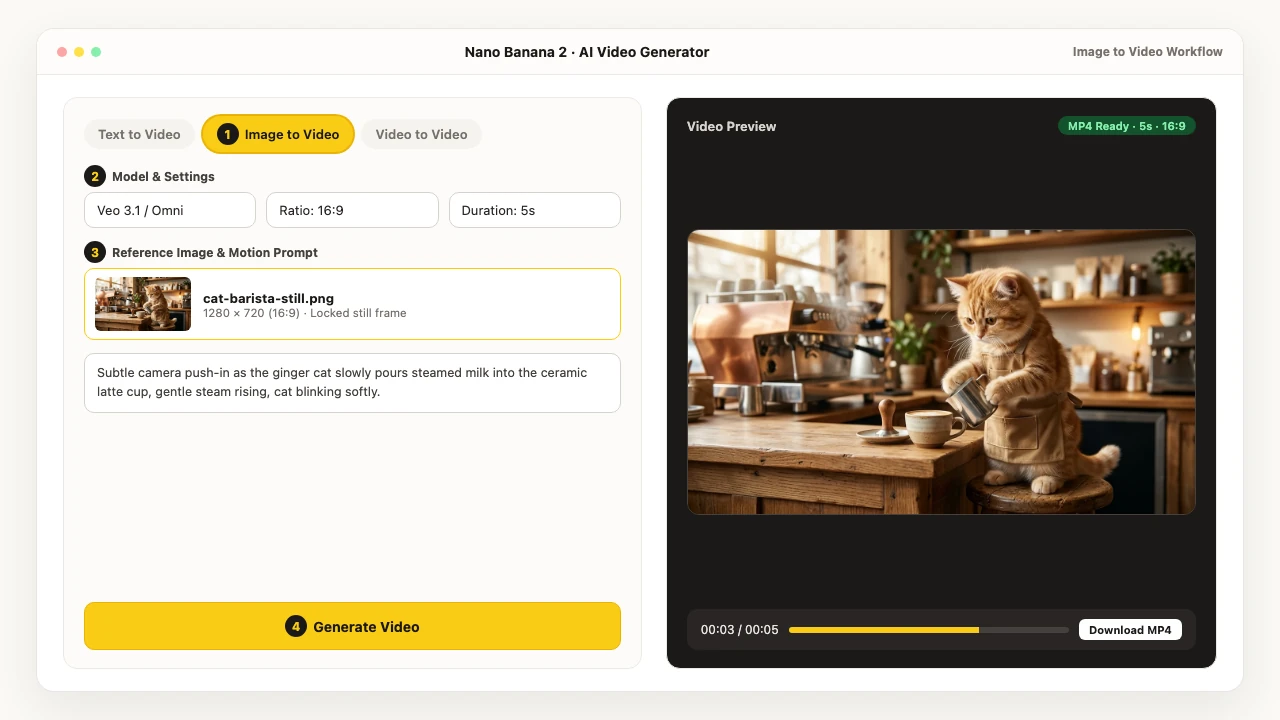
If you upload the ginger cat barista image below and type "a fluffy ginger tabby cat in a tan canvas apron standing behind a sunlit oak coffee bar," the video engine tries to re-draw the cat and the espresso bar from scratch, causing flicker and warped paws. Instead, treat the uploaded image as a locked set and write only what changes:
- Skip: fur color, apron fabric, coffee machine details, background shelves.
- Write: "slowly pouring milk into the latte cup, gentle steam rising, soft blink, slow camera push-in."

Subtle camera push-in as the ginger cat slowly pours steamed milk into the ceramic latte cup, gentle steam rising from the coffee and espresso machine, cat blinking softly, warm morning sunlight.
Where to Animate Your Nano Banana Image (Stay On-Site or Export)
Once your still image looks right (ideally 9:16 for TikTok/Reels or 16:9 for widescreen), turning it into a video takes four quick clicks inside an AI Video Generator (such as Veo 3.1, Gemini Omni 1.2 Flash, Seedance, or Kling):
- Switch to Image to Video: Make sure you are not in Text-to-Video mode.
- Pick your video model: Choose the video engine you prefer.
- Upload your still as Reference Image: Drop in the saved image, then paste a short motion-only prompt into Prompt.
- Click Generate Video & download MP4: Wait 30-90 seconds for the preview, then save the MP4.
4 Rules to Turn Your Still Image Into a Stable Video
Once your image is uploaded to the video generator, four small settings decide whether the 5-second clip stays rock-solid or wobbles:
- Match the output ratio to your image: If your still is
9:16, generate a9:16video (and16:9for widescreen). Forcing a landscape image into a vertical video crops edges and triggers distortion. - Keep motion to one action + one camera move: A slow
push-in, gentlepan, orlocked tripodcamera with one subtle expression keeps faces and product lines intact. - Leave breathing room around the subject: When generating the still frame, avoid cropping tightly to the chin or bottle cap—give the camera room to glide.
- Keep each render short (4–5 seconds): Shorter clips hold identity far better. If you need a longer video, generate two 4–5s clips (or use start/end frames) and join them afterward. (Veo 3.1)
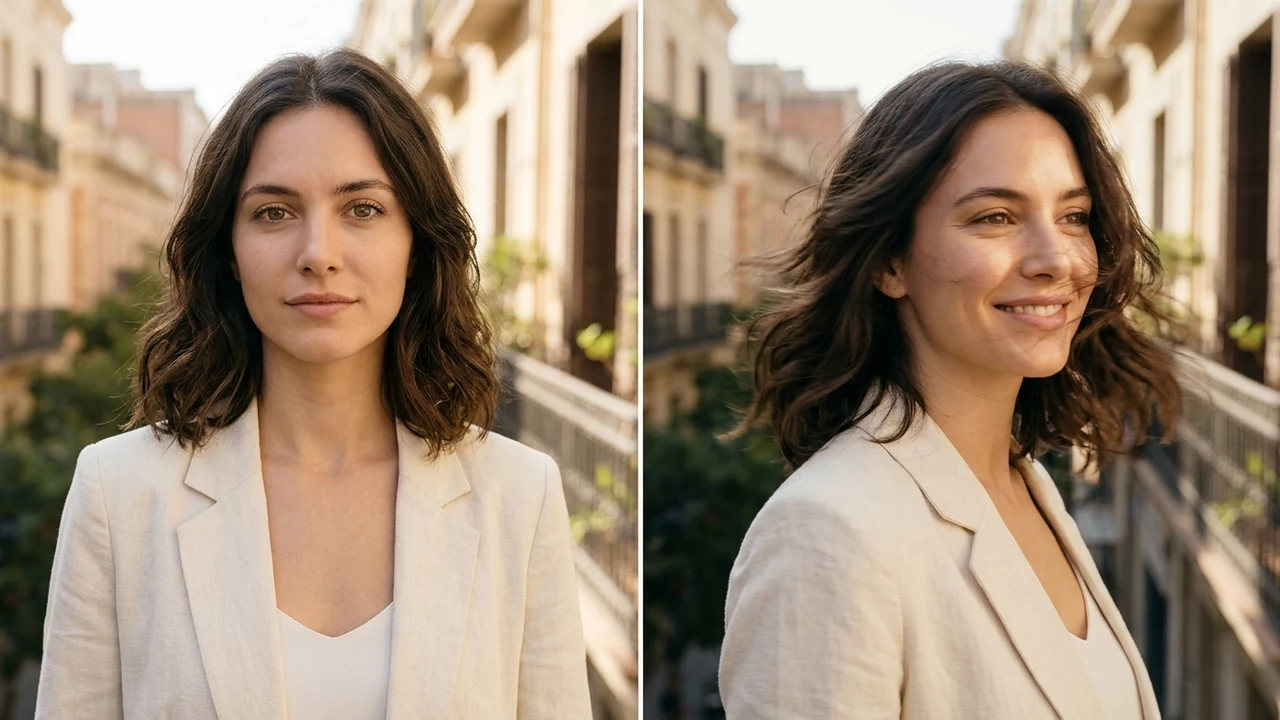
Two Viral Still-to-Video Formats Worth Trying Next
Once you master simple motion prompts on everyday scenes, two viral formats below hold up especially well in Nano Banana video generation because the focal subject stays locked:
- 3D Desk Figurines (Orbit + Subtle Sparkle): Turn a character or selfie into a stylized vinyl figure (keeping proportions steady with our Character Consistency guide), then let a slow 45-degree camera orbit and glowing sparkles bring the desk scene to life.
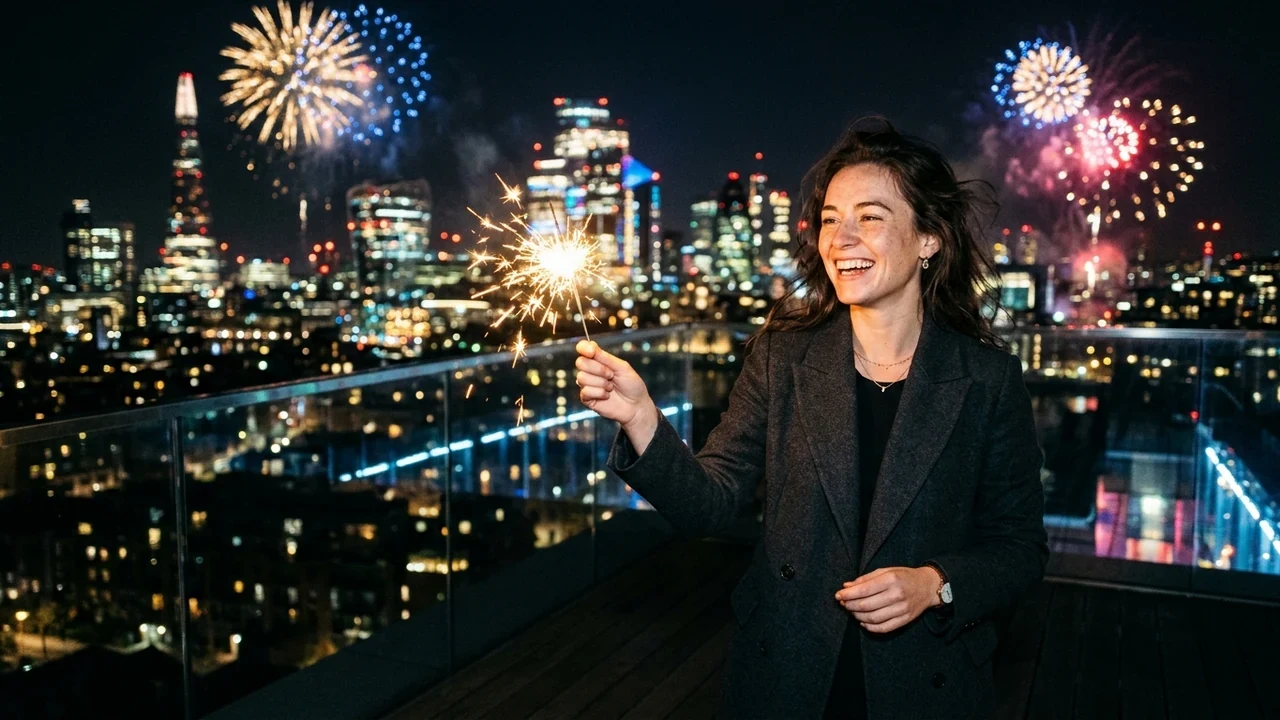
- Holiday & Night Sparkler Portraits (Light & Fireworks Move, Face Stays Intact): Just like the seasonal looks in our 2026 Christmas photo ideas and Face Swap keep-list, keep the face anchored while handheld sparkler embers and distant city fireworks animate behind it.
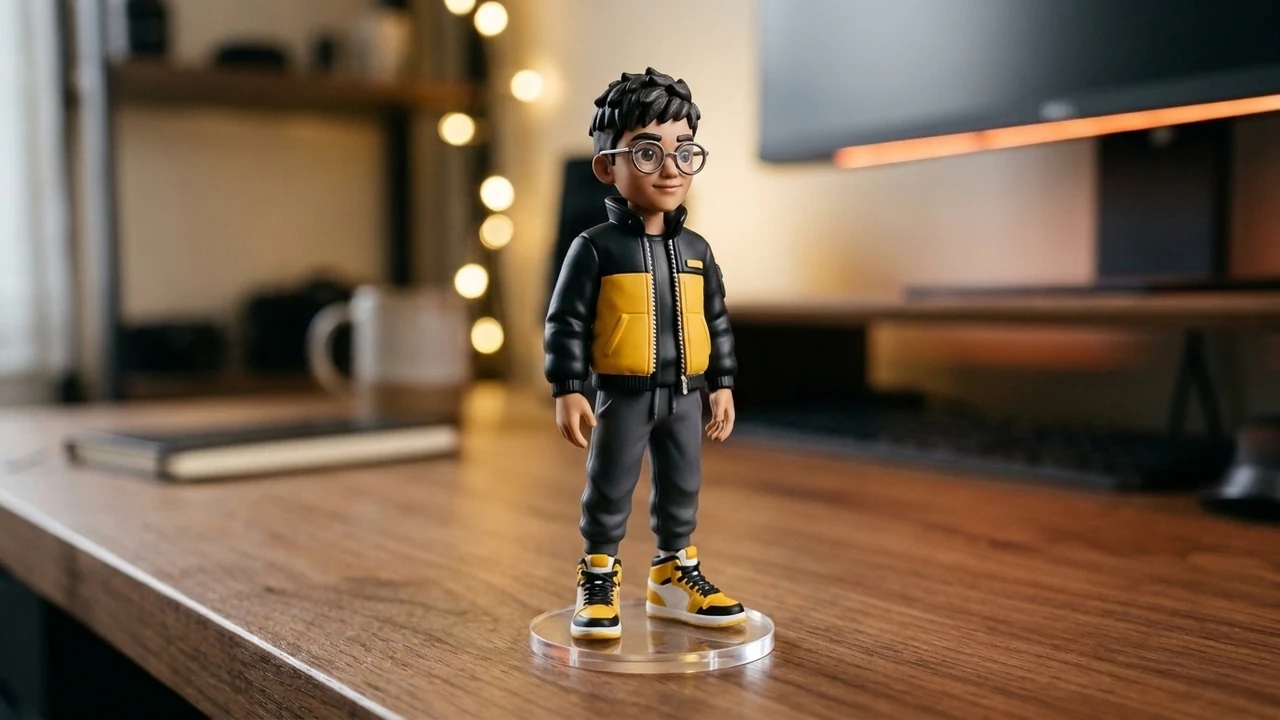
3D Figurine clip: Slow smooth 45-degree camera orbit around the desk figurine, subtle studio bokeh lights twinkling softly in the background, figurine gently blinking and smiling, smooth 5-second pacing.
New Year Sparkler clip: Gentle breeze blowing through hair strands, bright golden sparks crackling softly from the handheld sparkler, colorful fireworks bursting slowly in the blurred night skyline, locked facial features.
Frequently Asked Questions
Can Nano Banana make videos?
Nano Banana specializes in high-consistency still images and photo editing. To make videos, generate or refine your image first, then animate it in Image-to-Video using Veo 3.1, Gemini Omni 1.2 Flash, or external tools like Seedance and Kling.
How do I turn a Nano Banana image into a video?
Export or save your still image in the final aspect ratio (9:16 or 16:9), upload it into Image-to-Video, and enter a short motion-only prompt describing one action and one camera move.
Can I use my own photos to create videos?
Yes. You can upload your own selfies, travel shots, pet photos, or family portraits directly into Image-to-Video—or adjust lighting and backgrounds in the image editor first.
How long does it take to generate a video?
Most 4-to-5-second clips finish in roughly 30 to 90 seconds, depending on resolution, clip length, and current queue load.
Can I download the generated video?
Yes. Once rendering finishes, you can preview the clip right on the page and download the MP4 file to share or edit in CapCut, Premiere, or any mobile app.